Power down
Shut down the computer, switch off the power supply, unplug it, and wait before opening the case.
100T product support
A simple home for installation steps, the official file package, firmware guidance, and support.
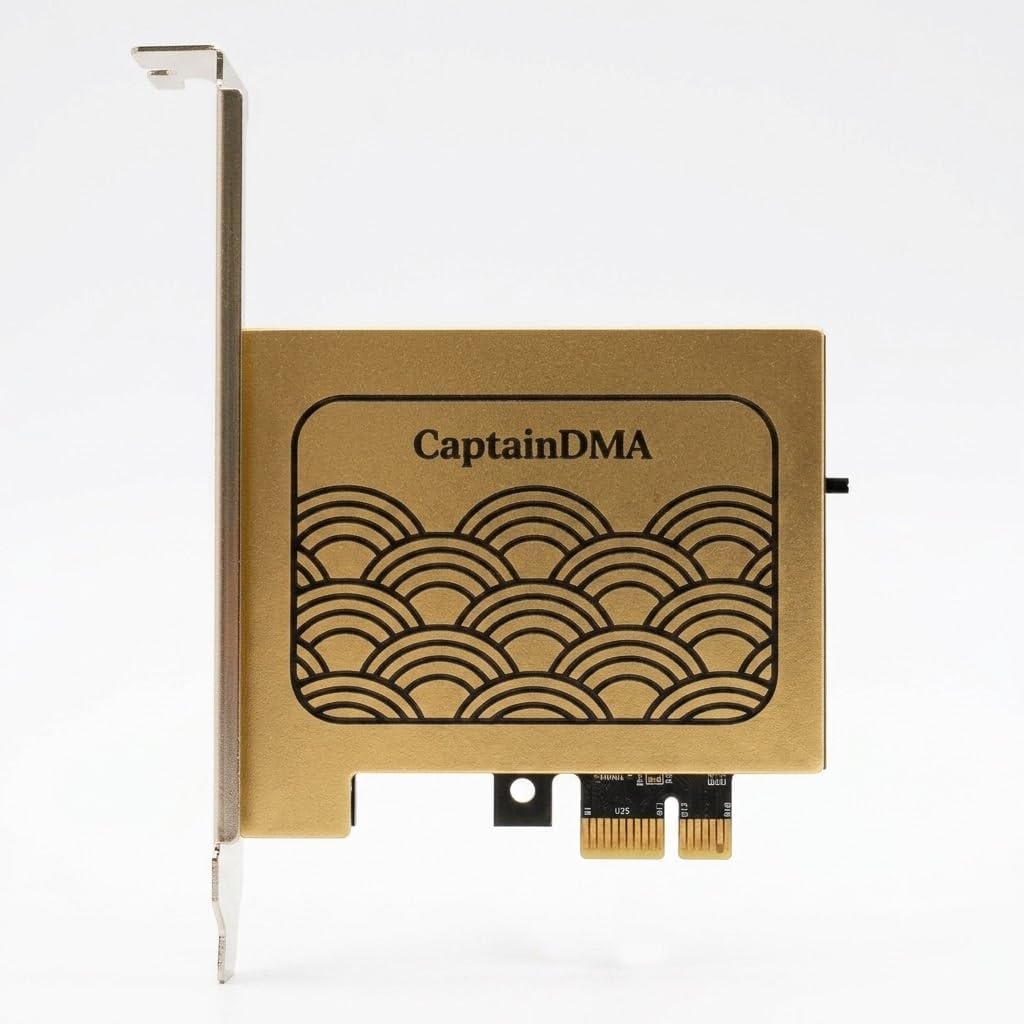
Product overview
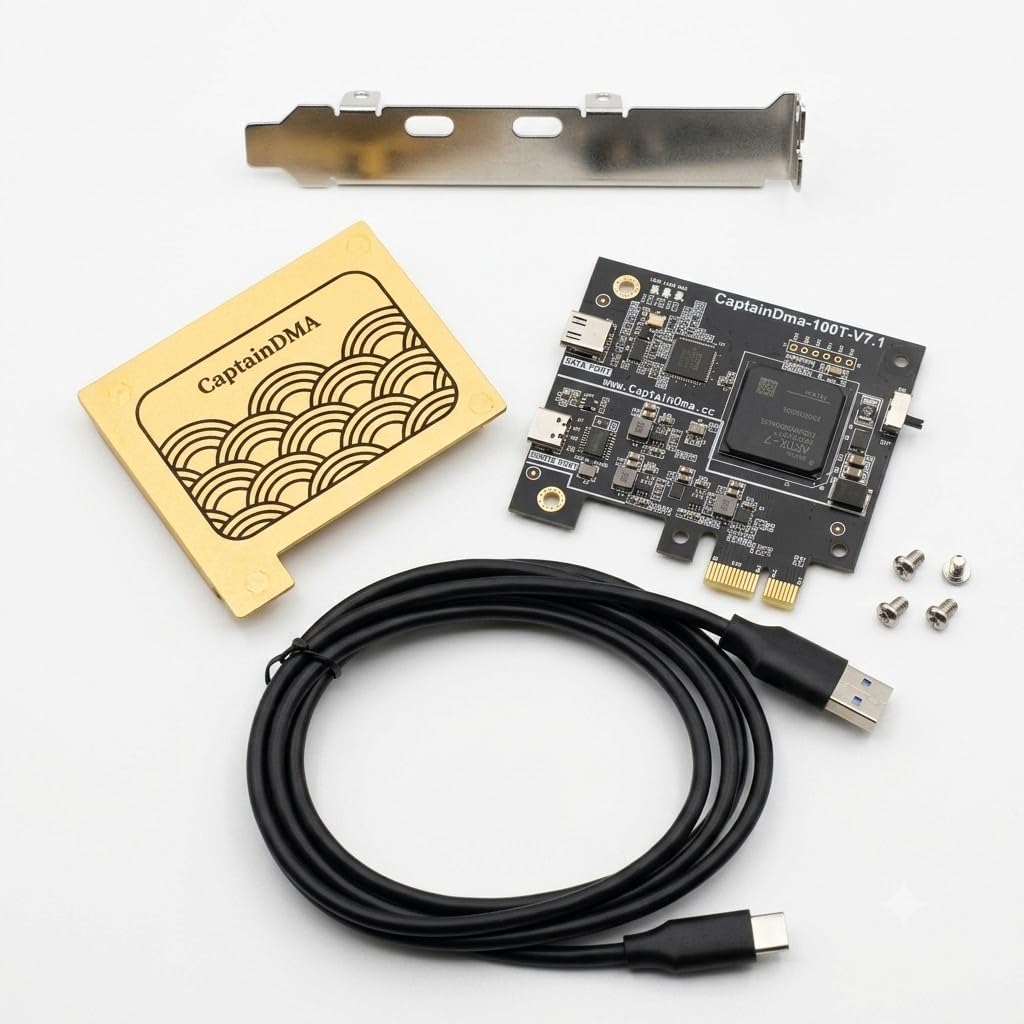
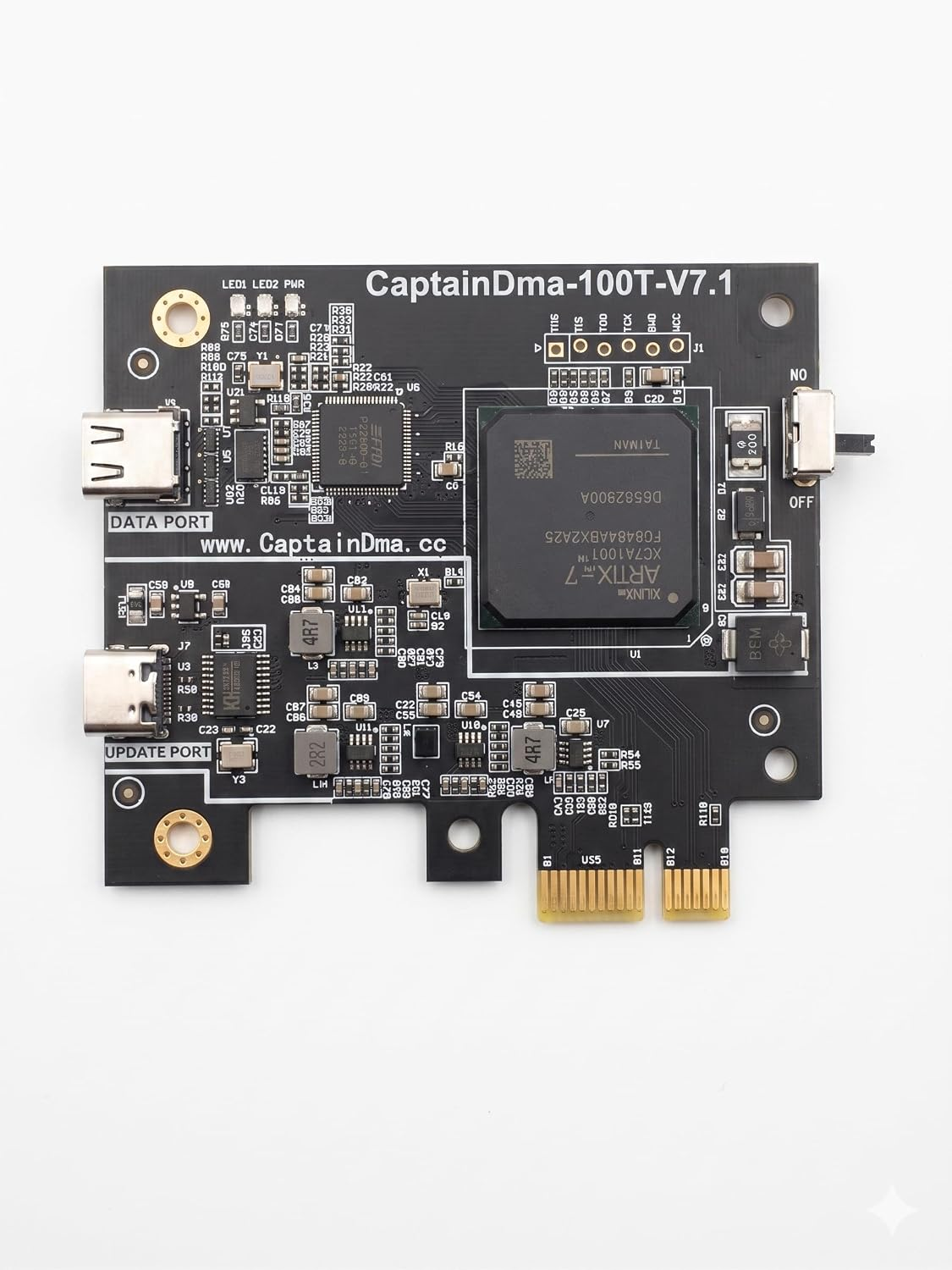
Review the board and included parts before installation. Product appearance may vary slightly between production batches.
Quick start
Shut down the computer, switch off the power supply, unplug it, and wait before opening the case.
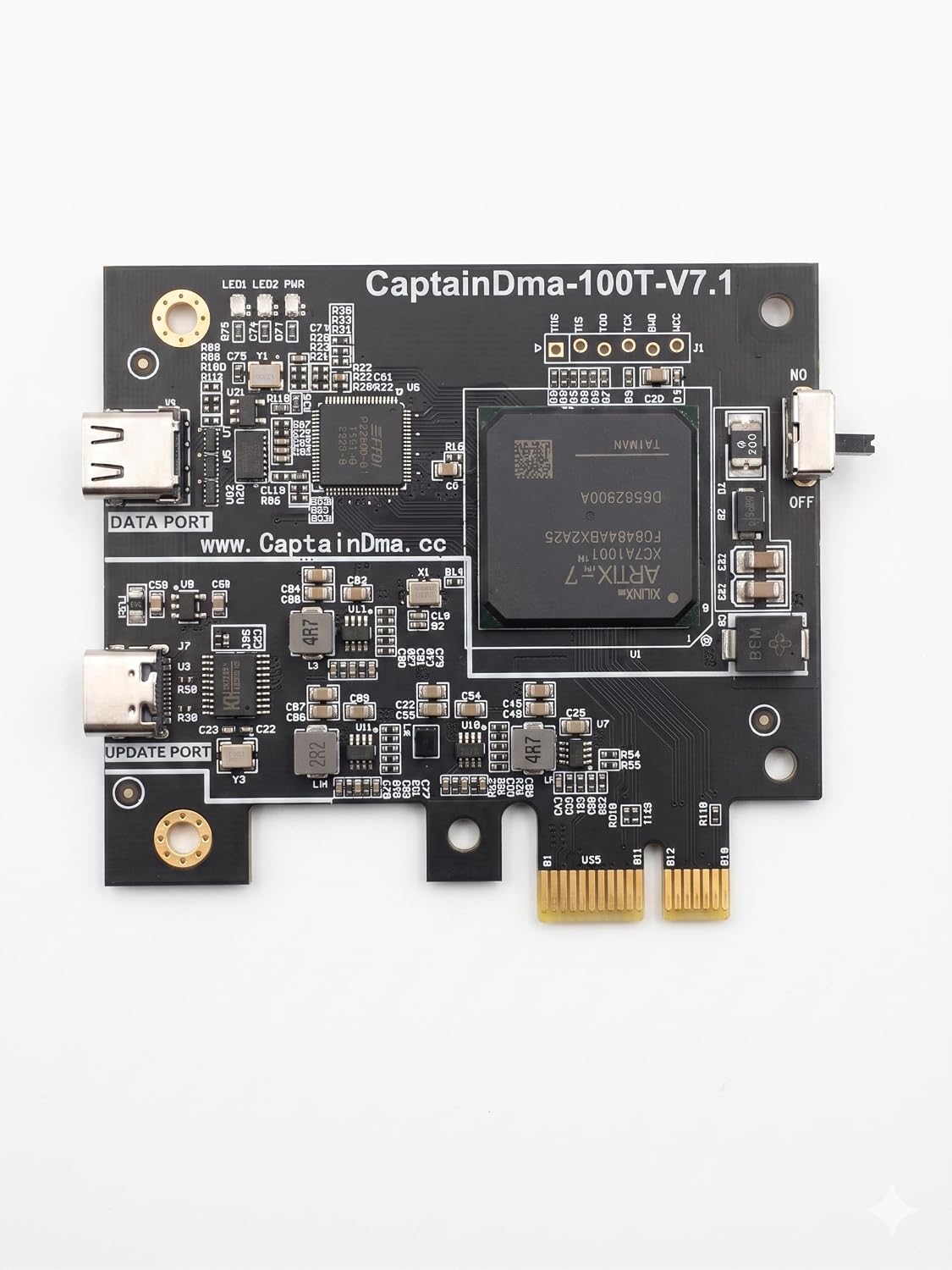
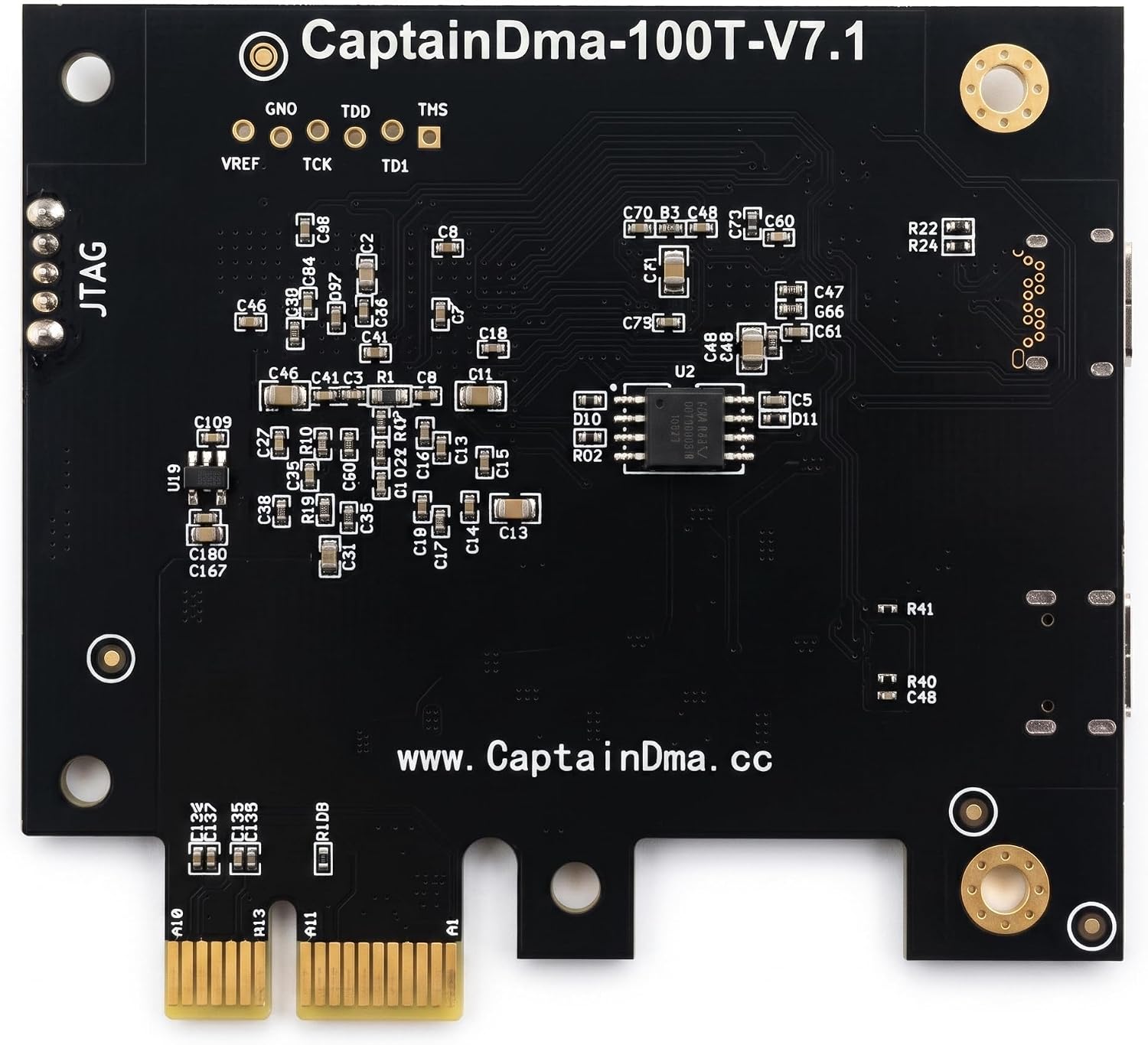
Insert the 100T straight into a compatible PCIe slot. Never force it. Secure the bracket to the case.
Connect only the cables included with your product, following the labels and documentation supplied with your unit.
Move the physical switch fully toward ON. This is required—the card cannot operate in the OFF position.
Power on, download the official driver package below, and follow its installer. Restart if prompted.

Installation check
The gold connector should be evenly inserted and the bracket should sit flush. If anything looks misaligned, power down before adjusting it.
Connection and performance check
After installation or flashing, run the included test to confirm that the card is communicating and performing normally.
Video walkthrough
Watch the CaptainDMA 100T setup walkthrough, then use the written steps below whenever you need a quick reference.
Firmware guide
pcileech_100t484_x1.bin. Keep power connected throughout the update.Run the official driver setup, then confirm installation completed successfully.
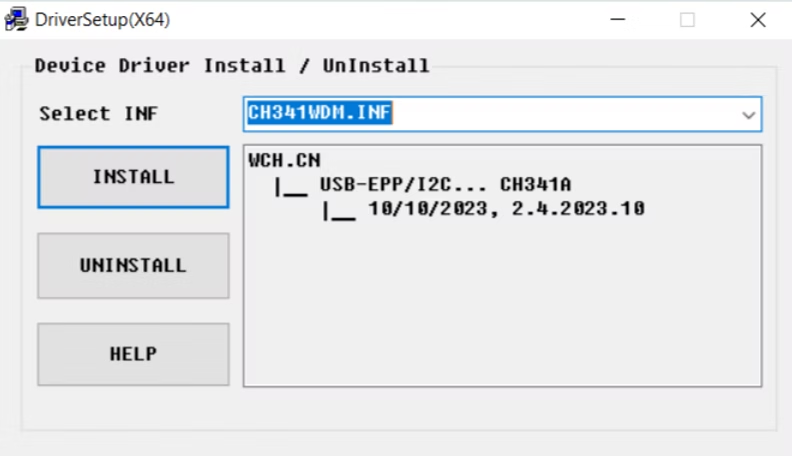
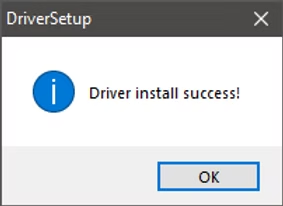
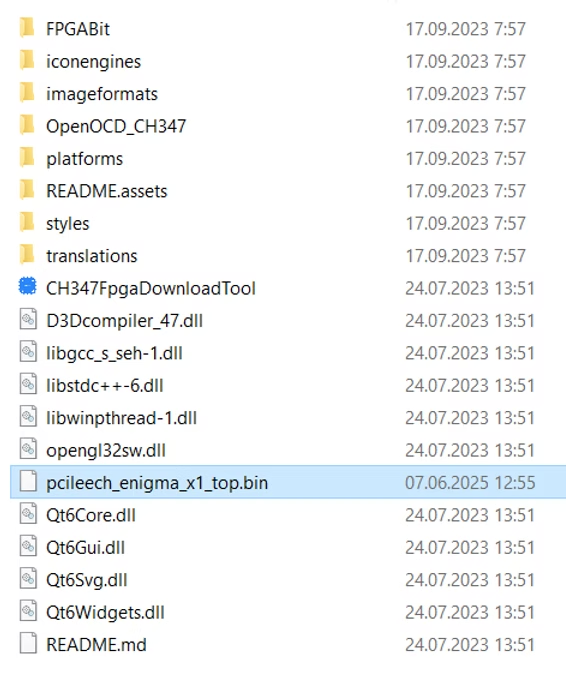
Open Firmware_Flash_Tool and locate pcileech_100t484_x1.bin. It is the default PCILeech firmware included for the 100T.
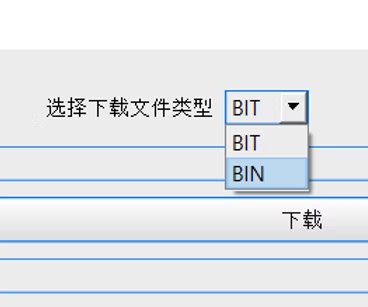
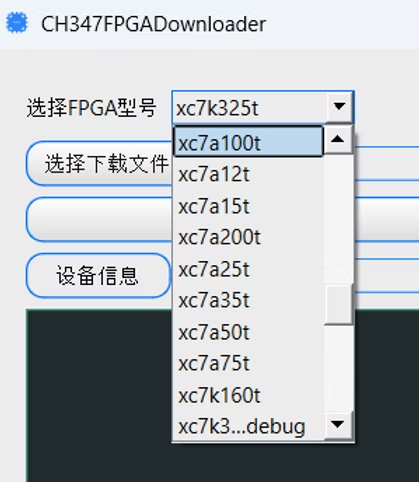
Open the supplied flashing tool and select XC7A100T. Confirm the selection before continuing.
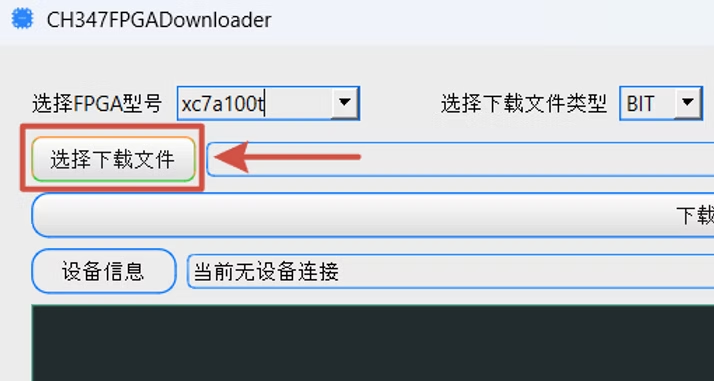
Select pcileech_100t484_x1.bin, or a compatible custom firmware file supplied specifically for your 100T by a trusted provider.
If your official package requires it, open the CH347 FPGA Tool folder and move the firmware file to the location shown in the included release notes.

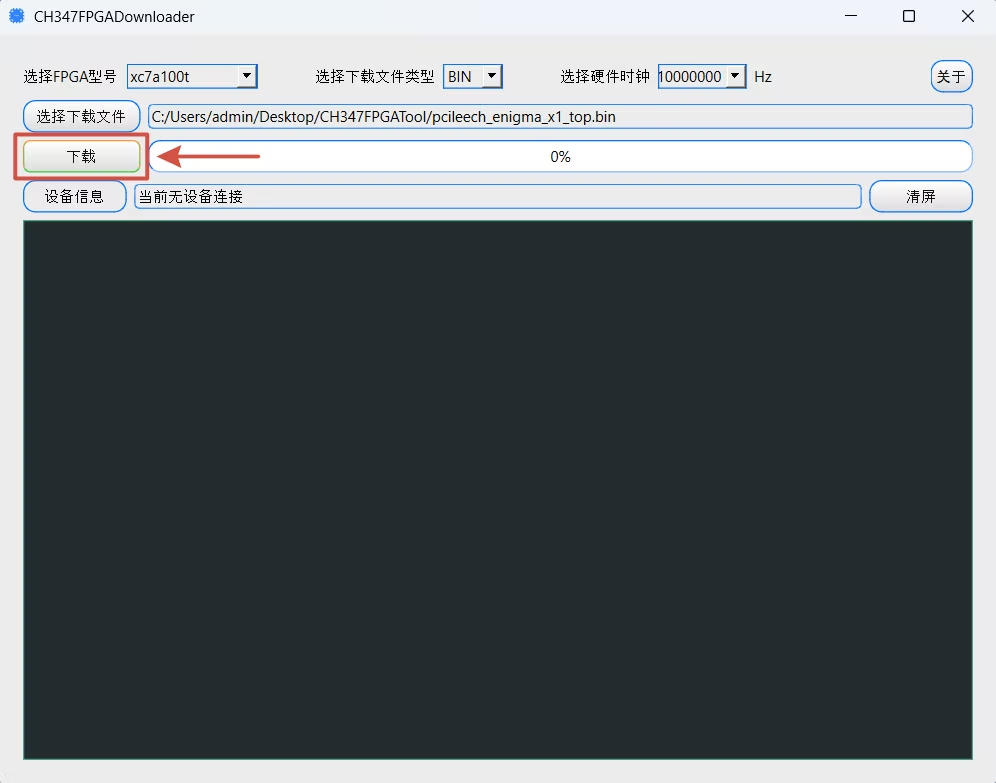
Begin the flash once and wait for completion without removing power. When finished, close the tool and move the cable from UPDATE/JTAG back to the DATA port before running the DMA test or using the card.
Official files
Download the complete CaptainDMA support package or browse additional firmware resources.
Driver installer, CH347 FPGA flash tool, default PCILeech firmware, DMA test utility, setup guide, and required runtime installers.
Browse the CaptainDMA resources in the upstream PCILeech FPGA repository.
Troubleshooting
Shut down and unplug the computer. Reseat the card, verify the bracket is aligned, and try another compatible slot if your motherboard manual permits it.
Confirm you downloaded the current official package, extract it fully, restart Windows, and run the installer again with other setup programs closed.
Use the supplied cable, reconnect it directly rather than through a hub, close other hardware utilities, and relaunch the official tool.
Restart the flashing tool and reflash the included default firmware. If the card still is not detected, contact support with a screenshot of the message shown.
Use firmware from a source you trust, and never bypass platform security or disable protections as a troubleshooting step.
FAQ
The included pcileech_100t484_x1.bin is the default option. For custom firmware, use a trusted source such as BDEServices or the linked CaptainDMA resources in the PCILeech FPGA repository.
No. Keep the computer powered and connected until the official tool confirms completion.
In most cases, the card can simply be reflashed with the included default firmware. Firmware flashing still carries some risk, so avoid random downloads and use trusted sources such as BDEServices or the linked PCILeech FPGA repository.
No. The download includes the default PCILeech firmware. Compatible custom firmware can be purchased separately from BDEServices.
Include your order number, operating system, a short description of the issue, and clear screenshots of any error.
Still need help?
Send us the details and we’ll help you identify the safest next step.